Templates
Using a template
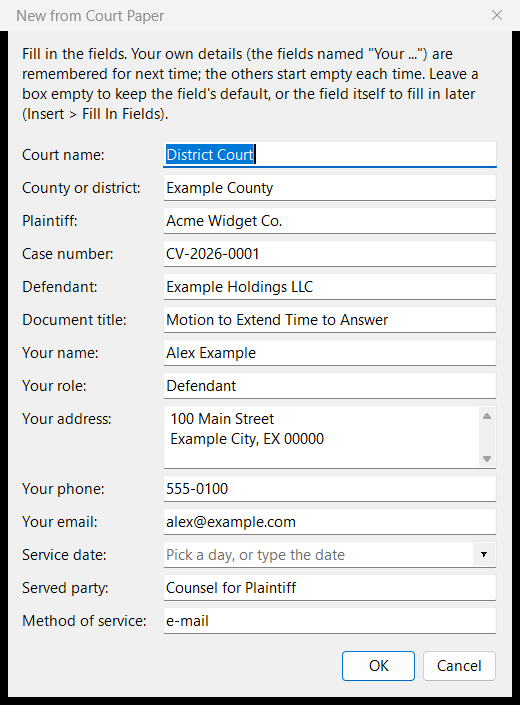
File > New from Template makes a new document from a template: Letter, Memo, Report, Court Paper (with a certificate of service), Meeting Notes, or one of your own. A dialog asks for its fields, such as the parties' names; your own details ({{Your name}} and the like) are remembered for next time, and date fields get a calendar.
- Insert > Insert from Template puts a template's content into the document you are writing. The parts Caption, Signature Block and Certificate of Service are made for that.
- Insert > Fill In Fields fills in fields left in a document.
Making a template
A template is an ordinary document with blanks.
- Start from a real document with the layout you want (a paper you have filed, a letter you have sent), or from a blank one. Whatever AhkWord keeps (fonts, spacing, tabs, indents, tables, header and footer, line numbers), the template keeps.
-
Replace each part that changes with a field, typed into the text:
Type The dialog shows {{Plaintiff}}a box labelled "Plaintiff" (the name is the label) {{Your role\|Plaintiff}}the box, with "Plaintiff" filled in if it is left empty {{Your address}}a box of several lines (any name with "address" in it); each line becomes a paragraph {{Hearing date}},{{Date}}the box with a calendar beside it (any name with "date" in it): pick a day, or type the date as it should read ("on or about June 3") - The same name used several times is asked for once.
- Fields whose names begin with "Your" are remembered: your name, address, phone and e-mail fill themselves in next time (the dialog's Forget remembered values clears them). Others (the parties, the case) are asked for fresh each time.
- The filled-in text takes the formatting of the field's first character: format the whole
{{...}}as the text should look. - Use square brackets for text to write by hand, such as
[The first point.].
-
Save it as Rich Text Format into your Templates folder (
%APPDATA%\AhkWord\Templates; the start page's Your templates folder opens it), named as the template should be called. A piece to insert into other documents, such as a caption or a signature block, goes into thePartsfolder inside it instead. - Use it with File > New from Template, or Insert > Insert from Template for a part. To change it later, open the file itself with File > Open, edit it and save it.
Fields in the header and footer are not filled in: they have fields of their own, such as {page} (see Pages and printing).
A template can also be a Word (.docx), OpenDocument, Markdown, HTML or text file; Rich Text Format keeps everything AhkWord can do, so it is the best choice for templates you make in AhkWord.
Adapting the built-in templates
The templates that come with AhkWord are starting points, made to be changed. Court Paper in particular is generic: courts differ in their captions, margins, line numbering, signature blocks and certificates of service, and the built-in one follows no particular court's rules. Make it your court's (and check it against that court's local rules):
- File > Open the built-in template: it is in the
templatesfolder beside AhkWord (thePartsfolder inside it has the Caption, Signature Block and Certificate of Service). - Change it as your court requires: the caption's layout and wording, the margins (Layout > Page Setup), the line numbers (Layout > Line Numbers), the fonts and spacing, and the fields it asks for.
- Save As Rich Text Format into your Templates folder (
%APPDATA%\AhkWord\Templates, or itsPartsfolder for a part), never over the built-in file:- under the same name ("Court Paper"), and yours is used instead of the built-in one;
- under a name of its own ("Court Paper - Example County District Court"), and it is listed beside the others: one for each court you file in.
Your Templates folder is yours: updating AhkWord replaces the program's folder, built-in templates included, but never touches your templates. To go back to a built-in template, delete or rename yours.
Templates for a firm
A firm can keep its templates (one per court, its letterhead, its standard agreements) in a shared folder, and copy them into each person's Templates folder when they change. Each person's own templates and remembered details stay their own.
Snippets
A snippet is a part with an abbreviation: type the abbreviation in the document, then Space, Enter, Tab or punctuation, and it becomes the part, formatted, its fields asked for, as Insert from Template inserts it. Type ;sig and a space, and your signature block is there.
Insert > Snippets... lists them, and makes and changes them:
- New: give it an abbreviation, and type or paste (Ctrl+V) its text in the box, formatted with B, I, U and Font... Fields such as
{{Your Name}}are asked for when it goes in. The text is kept as a part, named after the abbreviation unless you give it another name. - New from Selection: the same, with the text selected in the document in the box: a signature block, a standard clause, any text, formatting and all.
- Change: its abbreviation, how it fires, and its text, in the same box. Choosing one of your parts (or a built-in one) by name shows its text; changing it there changes the part.
- Remove and Insert Now.
Each snippet chooses how it fires:
- On an ending character (as at first): Space, Enter, Tab or punctuation after the abbreviation. Keep the ending character leaves it after the snippet; without it (as at first),
;sigand Enter inserts the block with no empty line after it. - At once, as soon as the abbreviation is typed (AutoHotkey's
*). - Case-sensitive: the abbreviation fires only typed as it is.
Abbreviations that aren't words
An abbreviation that is also a word (cos, sig, re) would fire whenever you type the word: start it with a mark, such as ;cos, ;sig. The dialog warns about common words.
Snippets are AutoHotkey hotstrings, which AhkWord.ahk sets up for its own window: they work in AhkWord's document (and, as plain text, in the Markdown and HTML views), not in its dialogs, nor in other programs. With several AhkWord windows open, a snippet fires only in the one you type in. Undo takes the snippet back to what you typed.
In other programs: Export as Script writes the snippets as a small AutoHotkey v2 script of plain-text hotstrings (their fields as their defaults, or [their names]). Run it with AutoHotkey beside your own scripts, and narrow it to some programs with #HotIf if you like. It needs no AhkWord.
The snippets are kept in snippets.json beside your own templates (in AhkWord's folder in portable mode), shared by all AhkWord windows: one made in one window works in the others too. Scripts use Rte.Snippets, AddSnippet, RemoveSnippet, InsertSnippet, SaveSelectionAsSnippet and ExportSnippets (see the API reference).